
Generating one AI clip is easy. Turning an idea into a complete video with consistent scenes, narration, subtitles and sensible pacing is the time-consuming part. A manual Google Flow workflow means writing prompts scene by scene, downloading every clip, naming files, generating voice-over and assembling everything in an editor.
I2V Studio automates that chain on your computer. It uses a Google account you sign in to yourself, asks Gemini or ChatGPT to develop the script, generates clips through Google Flow, creates narration, burns in subtitles and assembles the final video. This guide walks through the entire workflow and highlights what to check before spending credits.
What Does Automated AI Video Creation with Google Flow Mean?
An automated AI video workflow involves more than entering a prompt and waiting for a clip. It needs to turn a topic into a structured script, split that script into scenes of the right length, preserve character and visual consistency, then process audio, subtitles and the final export.
I2V Studio acts as the orchestration layer on your computer. It opens Chrome with your own Google session and works with Google Flow only after you approve the script. Project data, login sessions and exported videos stay on your device; CMSNT does not hold your Google password or ask you to hand the account to a third party.
- Input: an idea, product, topic or content format you want to develop.
- Processing: topic research, scripting, scene planning, image or clip generation, narration and subtitles.
- Output: a complete video ready for review, scene-level edits or publishing.
- Control: you approve the script and estimated credit cost before generation begins.
What You Need Before Creating an AI Video
I2V Studio is a desktop app, so the workflow runs on your computer rather than through an intermediary website. Install the latest version, activate your licence and add a Google account from inside the app. When a dedicated Chrome window opens, sign in normally; the app continues only after the session is ready.
Video-generation credits belong to your Google AI Pro or Ultra plan. The I2V Studio licence and Google credits are separate: buying the app does not include extra credits, while I2V Studio itself does not charge per exported video.
- A computer with I2V Studio installed and its licence activated.
- At least one Google account with Google Flow access and sufficient credits.
- Enough free storage for source clips, audio, subtitles and final exports.
- A clear goal: educational content, product reviews, storytelling or advertising.
Note: Each Google account uses its own Chrome profile folder. You can add several accounts to monitor available credits, but sign in and verify each one before starting a long project.
The Five-Step I2V Studio AI Video Workflow
The creation screen divides the job into five stages so you always know where the project stands. The first two stages define the storytelling approach and prepare the content without spending Google credits. Credit usage begins only after you have reviewed and approved the script or scene images.
-
01
Choose a Script Template
Pick from 96 templates grouped by industry and content format. Each one has its own persona, scene rhythm, visual style and prompt examples, with a sample video you can preview before selecting it.
-
02
Choose a Topic
Ask the chatbot for topics that fit the selected template or enter your own idea. Set a target length from 30 to 180 seconds and specify a voice style for each character.
-
03
Review the Script and Images
Check narration, English visual prompts and timing scene by scene. For image-first workflows, generate and approve the image set before turning those frames into videos.
-
04
Generate through Google Flow
Select a model, review the estimated credit total and confirm. The app generates each clip with the Google account you selected and returns it to the project.
-
05
Export
Choose narration, refine subtitles, review the timeline and export the completed video to a folder on your computer.
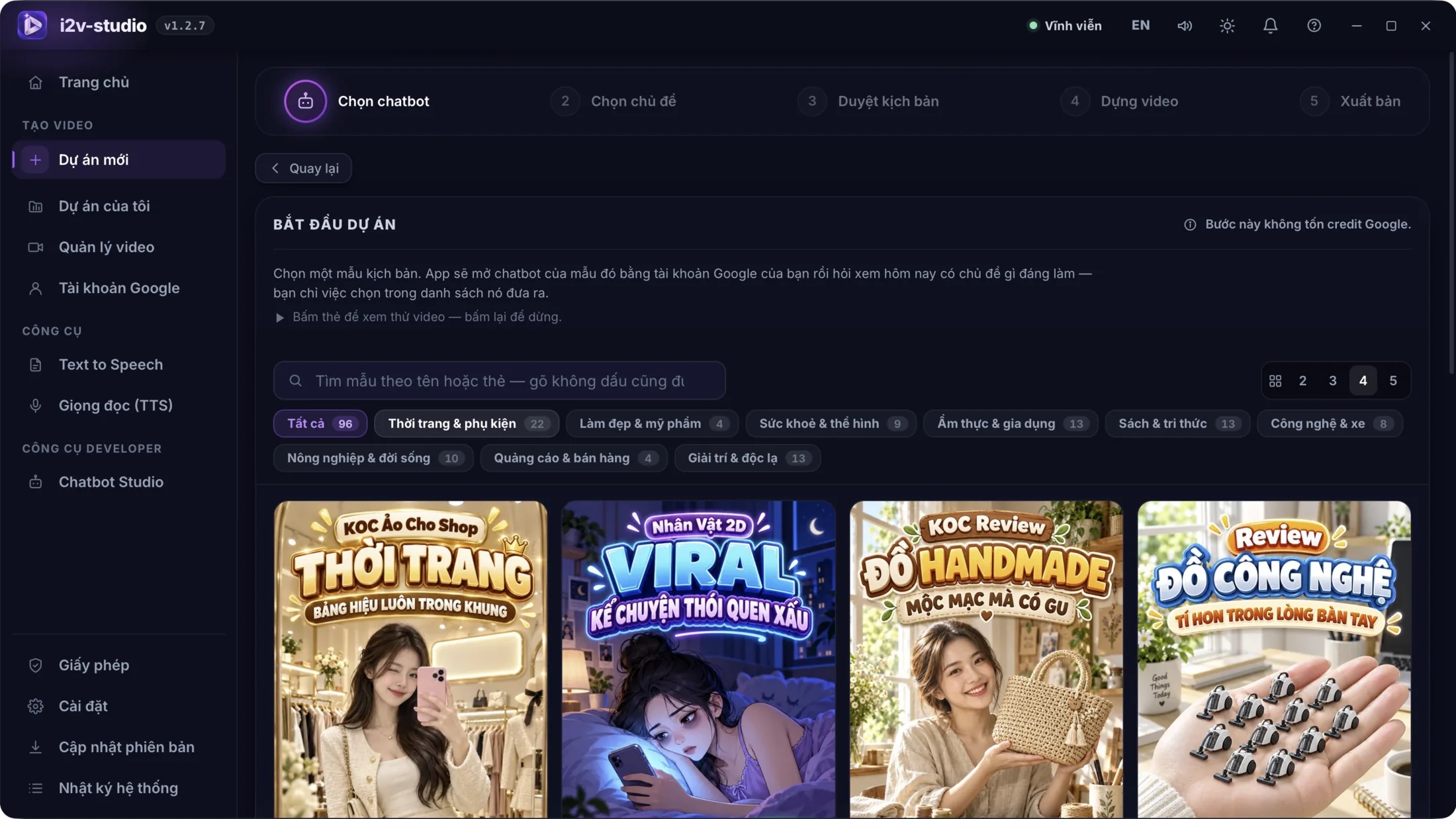
Watch the Workflow: From One Idea to a Complete Video
The walkthrough below records I2V Studio running on a real computer: selecting a template, choosing a topic, reviewing the script scene by scene and moving the project into production. It is the quickest way to see which operations the app automates and where you remain in control.
- See how 96 script templates can be filtered by industry and content goal.
- Inspect each scene's structure, narration and prompt before approving generation.
- Follow a project from the initial idea to an editable scene timeline.
Review Scripts and Keyframes Before Spending Credits
Reviewing is what separates a controlled production workflow from random prompt retries. The script is split into scenes, each with narration, a visual prompt and its own timing. You can edit text, rewrite prompts, add or remove scenes, or ask the AI to revise the full script before generation.
For image-first templates, I2V Studio uses Nano Banana in Google Flow to prepare a still image for every scene. Under the app's current workflow, this stage does not deduct credits, so you can inspect composition, characters and lighting before choosing a model to animate those images. Fix weak frames here instead of paying to animate a poor starting point.
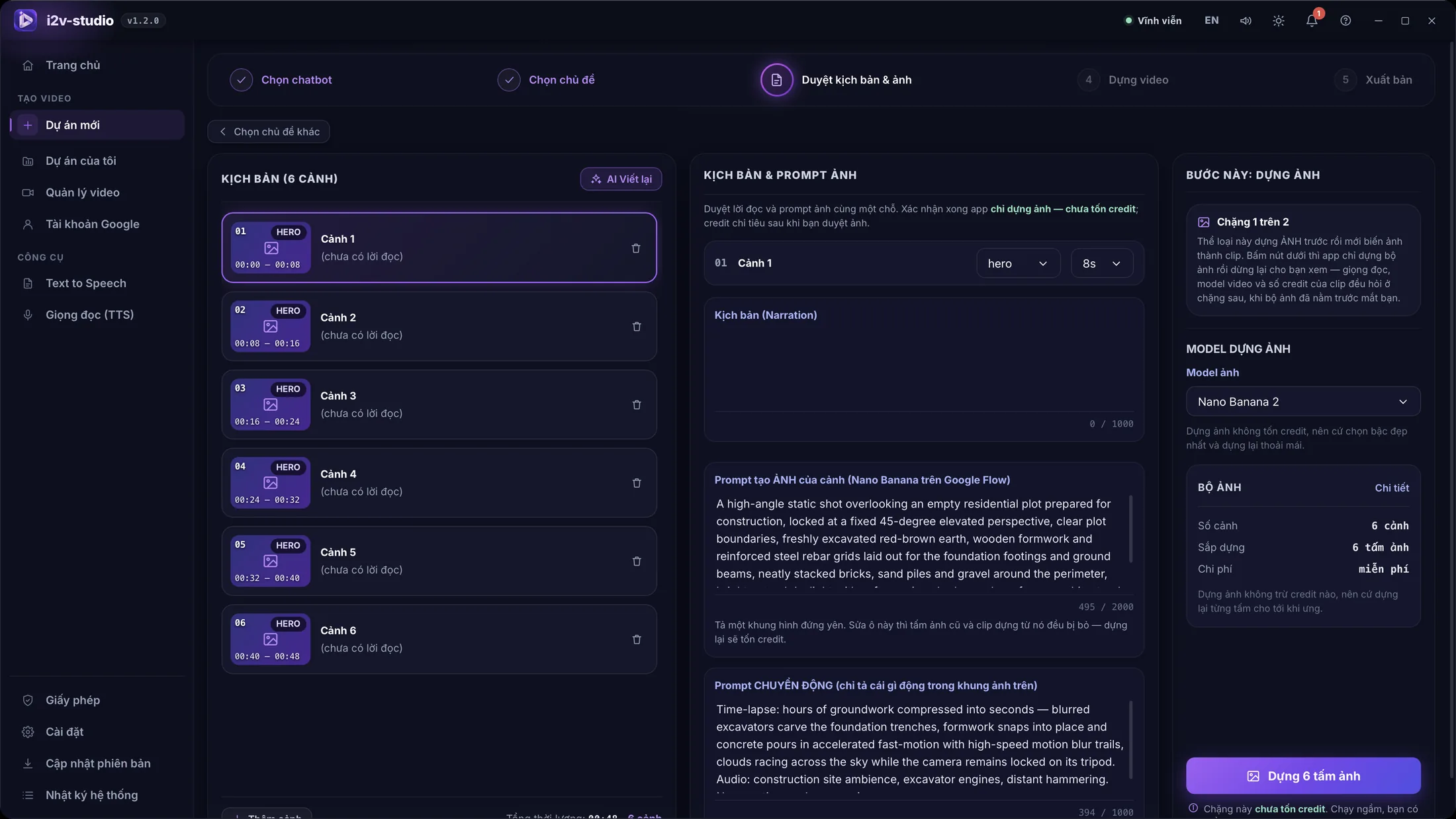
Note: A useful prompt clearly defines the subject, action, setting, camera angle, lighting and visual style. For a recurring character, keep the identifying description consistent across scenes.
Choose a Model and Optimise Credit Usage
I2V Studio exposes the model choices configured in the app, including Omni 1.1 Flash and the Veo 3.1 Lite, Fast and Quality tiers. Each option balances clip length, speed and quality differently. The app shows an estimated cost before confirmation so you do not have to guess the total credits required for a project.
The most effective saving comes from finalising the script and keyframes first, then regenerating only the scene that needs work. I2V Studio's scene editor lets you change a prompt and rerun the selected scene while keeping every approved clip intact.
- Create a short draft to validate the template, narrative voice and visual direction before producing a longer video.
- Review the total scene count and estimated cost, with a credit reserve for likely retries.
- Improve a vague prompt instead of repeatedly generating with the same ambiguous description.
- Reserve higher model tiers for hero scenes if the entire video does not require the same quality level.
- Review every scene immediately to catch character, text or motion errors early.
Edit Individual Scenes, Add Voice-over and Create Subtitles
Once clips return to the project, the studio displays a preview, a scene timeline and controls for the selected scene. You can change narration, switch voices, edit subtitles, duplicate a scene, add a new one or remove unnecessary content without rebuilding the entire video.
The app supports several voice sources. Edge and CapCut offer a quick start; Piper and VieNeu run locally after their models are downloaded; ElevenLabs uses your own API key when you need premium voices. Always preview pronunciation, especially for brand names and numbers, before exporting.
- Keep background music below the narration so the message remains clear on phone speakers.
- Use short subtitle lines and avoid covering faces or important on-screen text.
- Verify pronunciation of brand names, English terms, prices and measurements.
- Watch the final export from beginning to end to catch blank scenes or abrupt transitions.
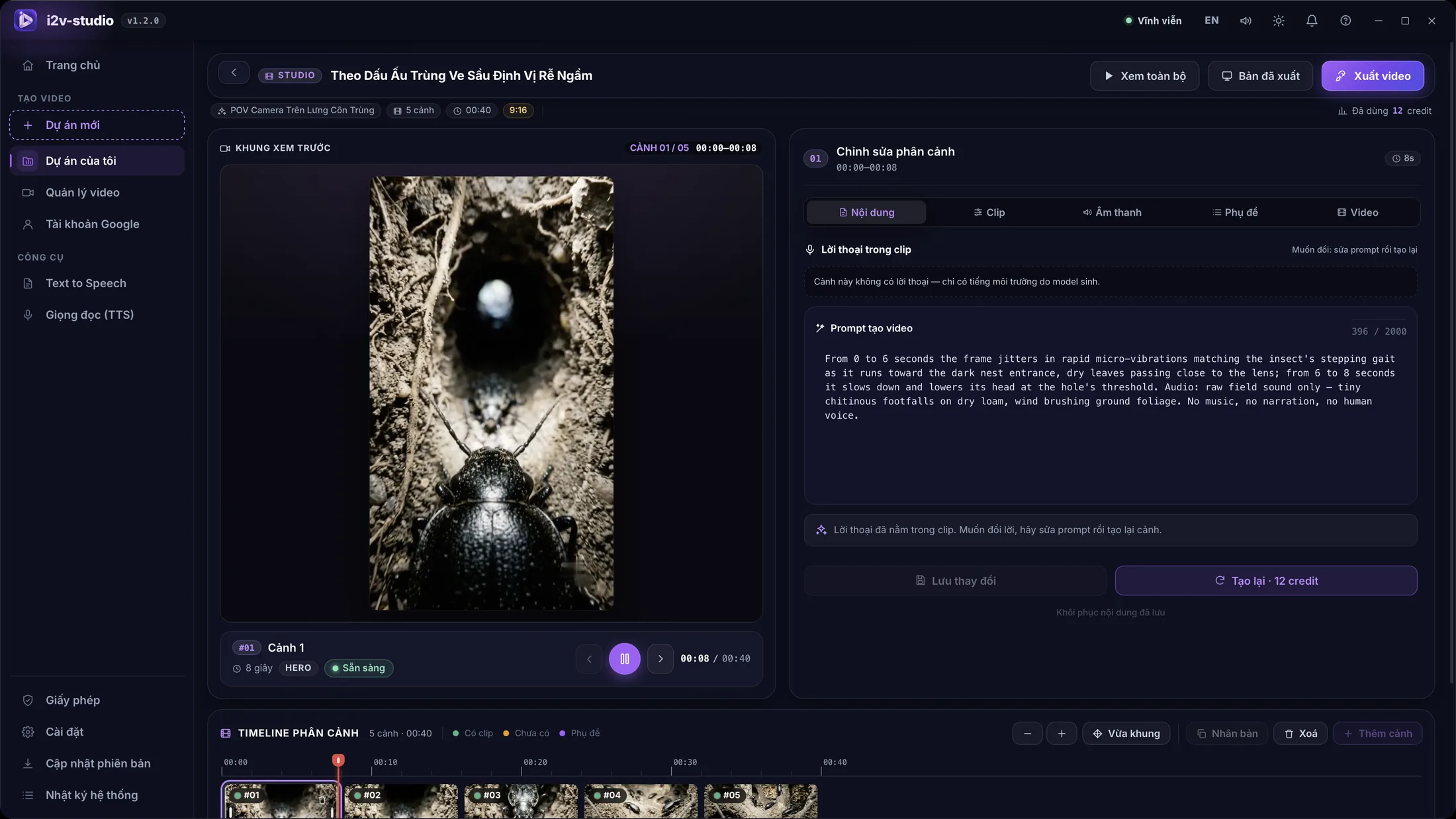
Which Content Formats Suit I2V Studio?
The template library means creators do not have to start from a blank page. Choose the structure closest to your goal, then replace the topic, character and style to develop a recognisable series. This approach works best for repeatable formats whose subject changes from one episode to the next.
- Educational channels covering technology, health, personal finance, agriculture or explainers.
- Product review and sales videos focused on benefits, use cases, comparisons and calls to action.
- Storytelling channels using animation, virtual characters, history, short fiction or motivational narratives.
- Faceless video channels built around a consistent character, voice and subtitle format.
- Content experiments that test several hooks or angles before a larger campaign.
Note: Automation speeds up production but does not replace editing. You still need to verify factual accuracy, rights to input assets and the policies of the platform where the video will be published.
AI Video Pre-publish Checklist
Once the workflow is reliable, keep the templates, prompt patterns and character identity that perform well so later videos share the same style. I2V Studio removes repetitive operations; channel quality still comes from strong topics, clear scripts and your own disciplined review process.
- The core message appears early and stays consistent from the title through the final scene.
- Characters, products, colours and settings do not change unexpectedly between scenes.
- There are no obvious AI artefacts such as malformed hands, distorted text, extra objects or implausible movement.
- Narration is correctly written, pronounces names properly and matches the on-screen content.
- Subtitles are legible on mobile, sit within safe margins and will not be obscured by platform controls.
- Aspect ratio, duration and file size fit YouTube, TikTok, Facebook or the intended destination.
- You have the right to use every image, audio track, logo and dataset supplied to the project.
- The final file has been reviewed and stored with its project so future edits remain possible.
If you run an online business or provide services, you have likely experienced this: juggling Facebook Messenger, Zalo, Telegram, Discord, and website live chat all at once on your desktop. Notification chimes ping across multiple windows while staff scramble between apps to reply. Before long, messages get lost, response times stretch to half an hour, and potential buyers drift away to competitors.
Channel fragmentation strains support teams and leads to missed sales opportunities. ChatHub was designed to eliminate that friction: uniting conversations across major messaging platforms into one cohesive inbox, combined with an intuitive drag-and-drop workflow canvas and AI Agents so you can automate customer service and sales workflows with ease.
1. The Pain Points of Managing Customer Conversations Across Scattered Platforms
Customer preferences vary widely: corporate clients often communicate via Zalo, fashion and retail shoppers reach out through Facebook Fanpages or Instagram Direct, tech communities thrive on Discord and Telegram, while site visitors expect real-time answers via a Live Chat widget.
Scattering accounts across multiple apps introduces several operational headaches:
- Overlooked messages and lost leads: Peak hours and off-hour inquiries are easily buried, causing a sharp drop in sales conversion rates.
- Cross-talk and poor team collaboration: When a customer messages on Facebook and then follows up on Zalo, two agents might reply with conflicting information without knowing the customer's prior context.
- Data loss risks: Customer conversations locked inside employees' personal messaging accounts disappear whenever staff change jobs.
- Prohibitive costs for 24/7 human coverage: Keeping round-the-clock shift coverage to ensure minute-fast replies is costly, even though most incoming questions are repetitive.
2. The Unified Shared Inbox: All Messaging Channels in One Place
ChatHub delivers a centralized Omnichannel Inbox. Instead of installing and logging into separate software for each channel, all incoming messages from Facebook Pages, Instagram, Discord Bots & servers, Zalo personal accounts, Telegram Bots & personal accounts, and website Chat Plugins route into a single management interface.
Your support team can assign conversations, view customer profiles, assign classification tags (such as 'VIP', 'Pending Payment', 'Warranty'), and record private internal notes directly beside the chat thread.
- Clear channel origin: Every message displays an icon indicating where it came from, allowing reps to adjust tone and greeting appropriately.
- Smooth agent handover: Human agents can step in instantly when complex questions arise, then hand control back to automation without interrupting the user experience.
- Centralized customer records: Contact details, order history, and staff notes are kept together to deliver personalized support.
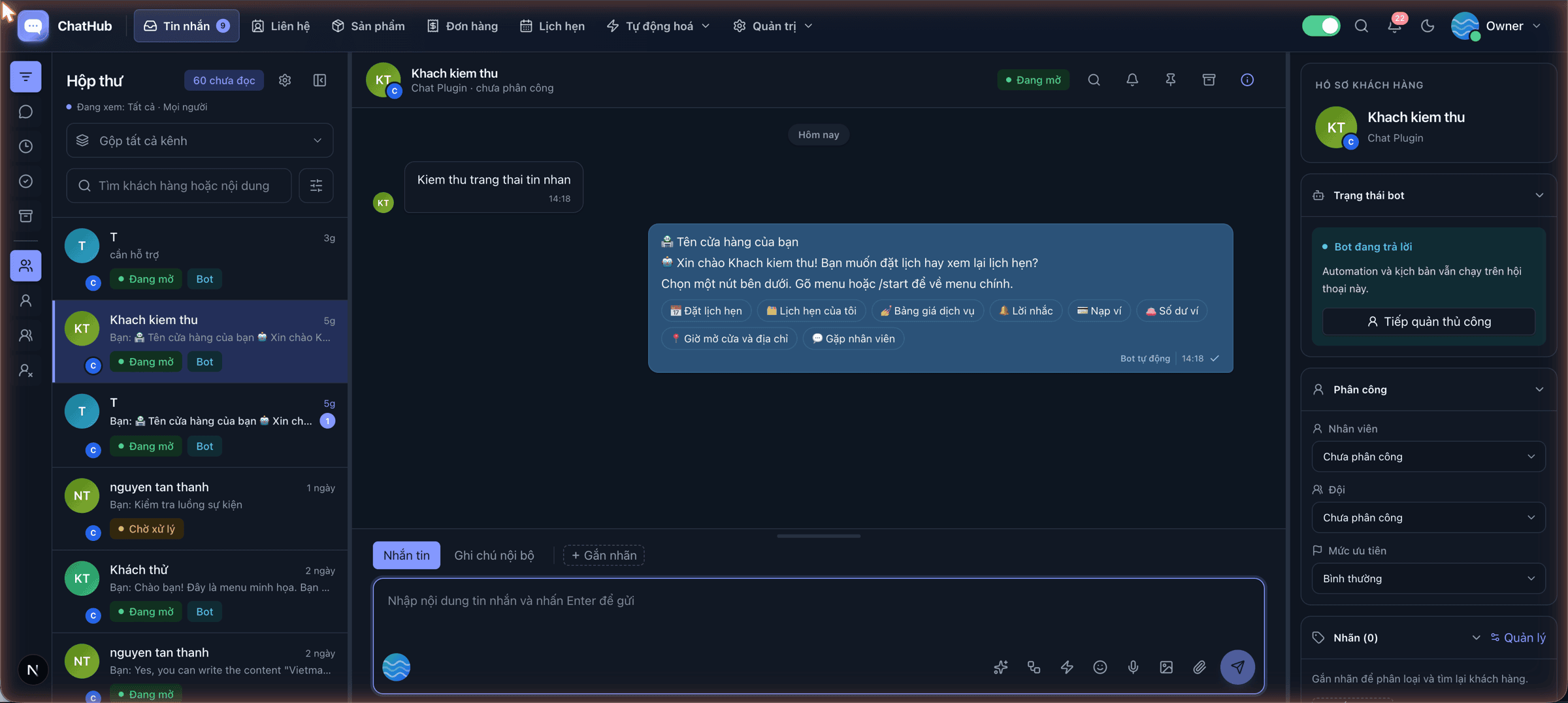
3. Design Custom Scenarios with the Drag-and-Drop Workflow Canvas
Traditional chatbot builders often force teams into rigid menu trees or require custom coding for advanced logic. ChatHub takes an intuitive visual approach: a drag-and-drop Workflow Canvas where you connect functional nodes to match your real-world business process.
Each block represents an action: sending text, sharing images or files, rendering interactive buttons, asking questions (name, phone, address), conditional branching (if/else), calling external APIs, or routing to human agents.
-
01
Start with Pre-built Templates
Choose from ready-made workflows such as automated digital product sales, appointment booking, warranty intake, or lead surveys to save setup time.
-
02
Drag, Drop & Connect Branches
Add condition nodes, automated replies, and interactive buttons. Easily configure what happens when a customer picks an option or when a step fails.
-
03
Test & Publish Instantly
Preview conversation flows in test mode, inspect runtime variables, and enable the workflow with a single toggle.
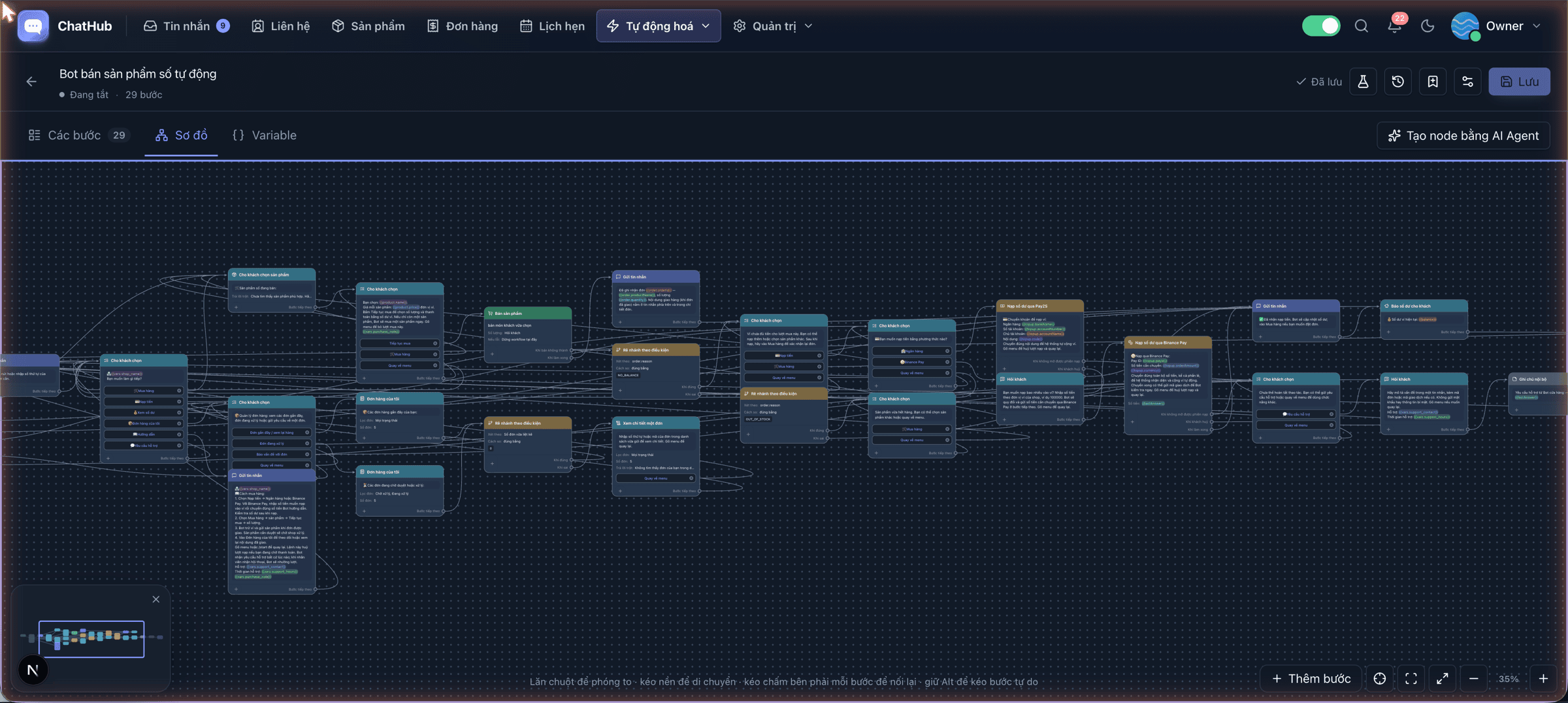
4. Watch ChatHub in Action: Shared Inbox & AI Bot Creation (Video)
To get the most intuitive grasp of how ChatHub operates in daily business, watch the real-time walkthrough video below. It shows how agents handle multi-channel inquiries, pick pre-built workflows, customize canvas nodes, and direct the AI Agent to expand bot capabilities.
- Handle and reply to incoming messages across multiple channels in a single inbox.
- Quickly initialize templates and customize branches on the visual canvas.
- Prompt the AI Agent to build conversation steps matching your exact business needs.
5. AI Agent: Contextual Knowledge-Based Customer Consultation
Rigid keyword-matching bots frustrate users by misinterpreting synonyms or returning robotic 'I don't understand' errors for minor typos. ChatHub solves this by integrating intelligent AI Agent blocks directly into the workflow canvas.
Upload product catalogs, price sheets, manuals, and frequently asked questions (FAQs) into your Knowledge Base. When customers inquire, the AI Agent references these documents to produce fluent, natural, and highly accurate answers tailored to your business rules.
- Natural language comprehension: Gracefully handles conversational speech, abbreviations, missing punctuation, and detailed questions.
- Autonomous workflow routing: When a buyer is ready to purchase or book a consultation, the AI Agent can transition the session into a checkout flow or alert a human agent.
- Model flexibility: Connect leading AI providers via your own API keys, giving you complete visibility and control over token usage.
- AI Copilot for human staff: Generates response drafts, refines tone, or translates foreign languages right within the agent compose box.

Note: ChatHub AI Agents rely strictly on your supplied knowledge base, keeping responses aligned with company policies rather than hallucinating.
6. Real-World Case Study: 24/7 Automated Digital Product Delivery
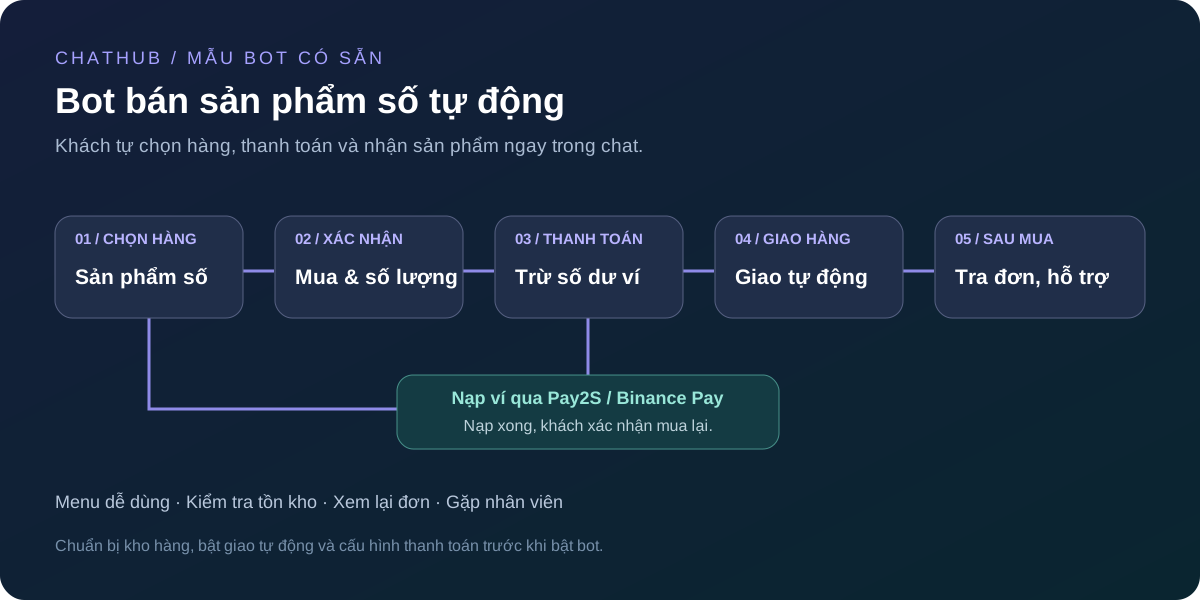
A prime demonstration of ChatHub's automation capabilities is the 'Automated Digital Product Bot' template. This setup is ideal for businesses selling software licenses, subscription keys, online courses, or digital assets.
The entire purchasing cycle runs autonomously without requiring human intervention:
-
01
Browse Catalog & Select Item
Customers view available products, real-time pricing, and stock status directly inside chat via interactive menus.
-
02
Instant QR Payment & Wallet Top-up
If wallet balance is insufficient, the bot generates a dynamic QR code for banking transfer via Pay2S or Binance Pay, crediting the balance automatically upon receipt.
-
03
Balance Deduction & Instant Key Delivery
Once confirmed, the bot draws license credentials from inventory, delivers them in the chat, and provides activation instructions.
-
04
Self-Service Order Lookup
Buyers can inspect past purchases at any time with a quick menu tap, minimizing repetitive lookup requests.
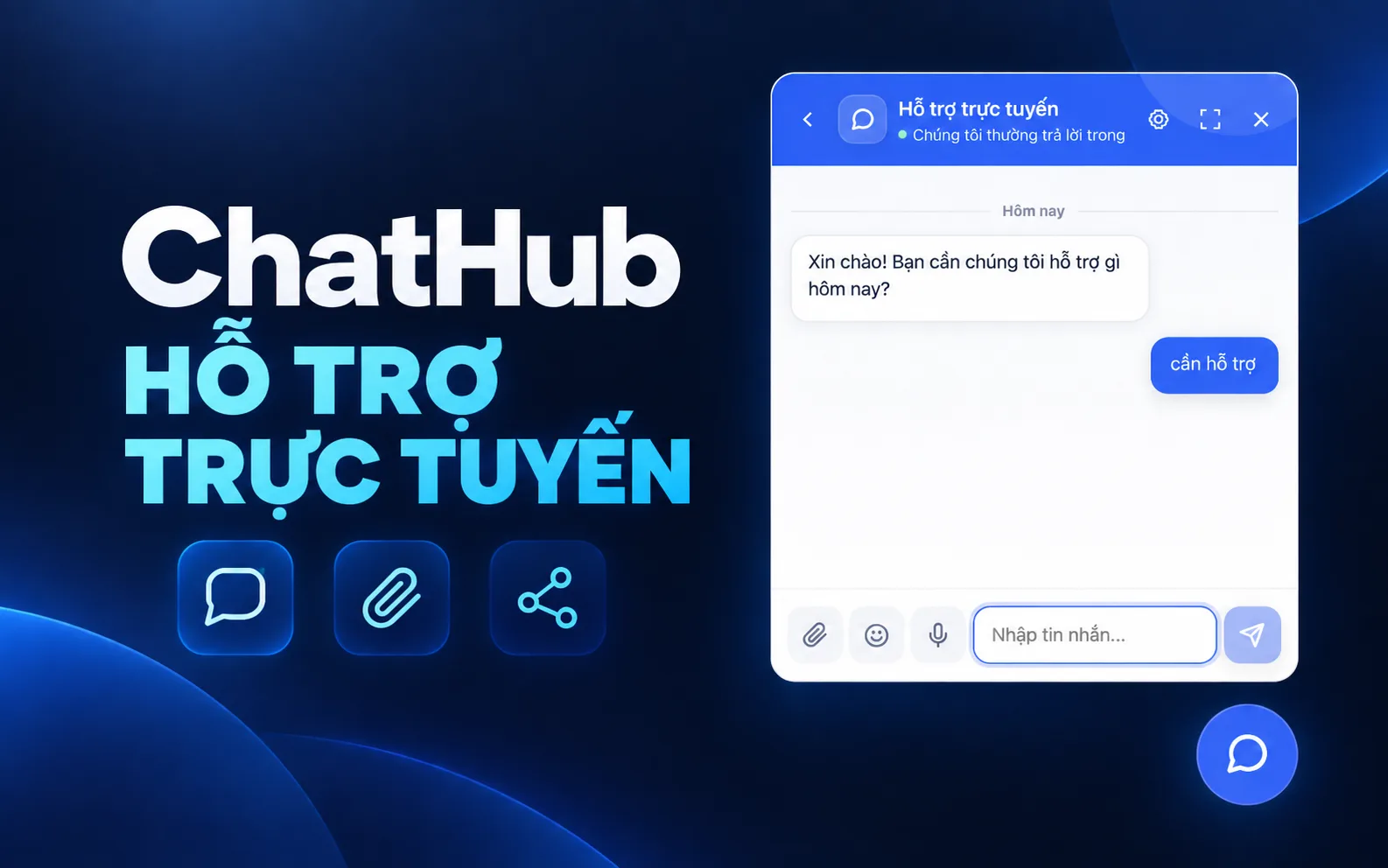
7. Embed Live Chat on Your Website in Under a Minute
While social messaging apps are vital, your website is where visitors demonstrate high purchase intent. ChatHub includes a lightweight, easily configurable Live Chat widget.
Simply embed a single script snippet into your website HTML (or via Google Tag Manager) to launch a responsive chat widget. Inquiries made on your site flow directly into your ChatHub inbox for immediate attention by bots or agents.
- Brand styling: Customize theme colors, avatars, greeting headers, and launcher positioning to blend with your website aesthetics.
- Pre-chat intake forms: Collect names, email addresses, or phone numbers before opening chat to capture high-value sales leads.
- Persistent conversation sessions: Visitors returning after days or navigating between pages maintain their continuous chat history.
8. Rolling Out ChatHub: Practical Advice for Getting Started
To maximize ROI without overwhelming your staff, you don't need to link every platform or assemble convoluted bots on day one. Adopt a phased approach:
- Phase 1 – Channel consolidation: Connect your 2–3 busiest messaging channels (such as Facebook Page, Zalo, and Telegram) so agents settle into the unified inbox.
- Phase 2 – Welcome greeting & FAQ automation: Deploy a straightforward workflow that greets newcomers, answers top questions, and gathers inquiry topics.
- Phase 3 – AI Agent & automated fulfillment: Feed training guides into the knowledge base for contextual AI replies and turn on automated checkout or booking flows.
Want to use Google AI Pro without paying an AI subscription yet? A Jio promotion lets eligible users in India claim Google AI Pro free for 18 months. This article walks through every step, from checking your mobile plan to linking a Gmail account and finishing the activation.
One clarification: what is free here is the AI Pro subscription fee under the promotion. You still pay for and keep an eligible Jio mobile plan. This is a conditional offer in India, not an open programme for every Gmail account elsewhere.
1. Check the eligibility rules first
Before you open MyJio, compare your mobile subscription against the programme rules. Simply owning a Gmail account is not enough to receive the offer.
- Age: the offer page currently states it is for users aged 18 and over. The 18–25 group named in the original announcement was the early rollout phase.
- Subscription: an active Jio SIM on an unlimited 5G plan of ₹349 or more, prepaid or postpaid.
- Continuity: you must stay on an eligible Jio plan for the whole 18-month benefit period.
- Region: the programme targets eligible Jio users in India.
Note: These conditions were checked on 08/09/2026. Review the Jio page and the notices inside MyJio before you sign up, because the programme can change.
2. Get MyJio and your Google account ready
Have the phone with your Jio subscription on hand, along with the Google account that should receive the AI Pro plan. If several Gmail accounts are signed in on that phone, double-check which address is selected at the linking step so you do not activate the wrong account.
Note: Pick the personal Gmail you normally use for work or study, so the plan and your other Google apps stay under one account and are easier to manage.
3. How to claim Google AI Pro free through MyJio
-
01
Install MyJio and sign in
Download the MyJio app from the official app store on your phone. Open it and sign in with the Jio number that holds the eligible plan.
-
02
Find the Google Gemini or AI Pro banner
On the MyJio home screen, look for the Google Gemini offer banner. If it is missing, check which number is signed in, the status of your plan, and update the app.
-
03
Start claiming the offer
Tap the banner and choose Claim Offer or the equivalent sign-up button. Read the programme details and follow the eligibility checks shown in the app.
-
04
Link your Gmail account
Select or sign in to the Gmail account that should receive Google AI Pro. Re-read the email address before you continue; this is the account you will use to access the benefit after activation.
-
05
Confirm and finish activation
Follow any verification prompts. On Google's confirmation screen, read the plan name, the offer period and the amount payable, then press the activation button. Wait for the success message before you close the page.
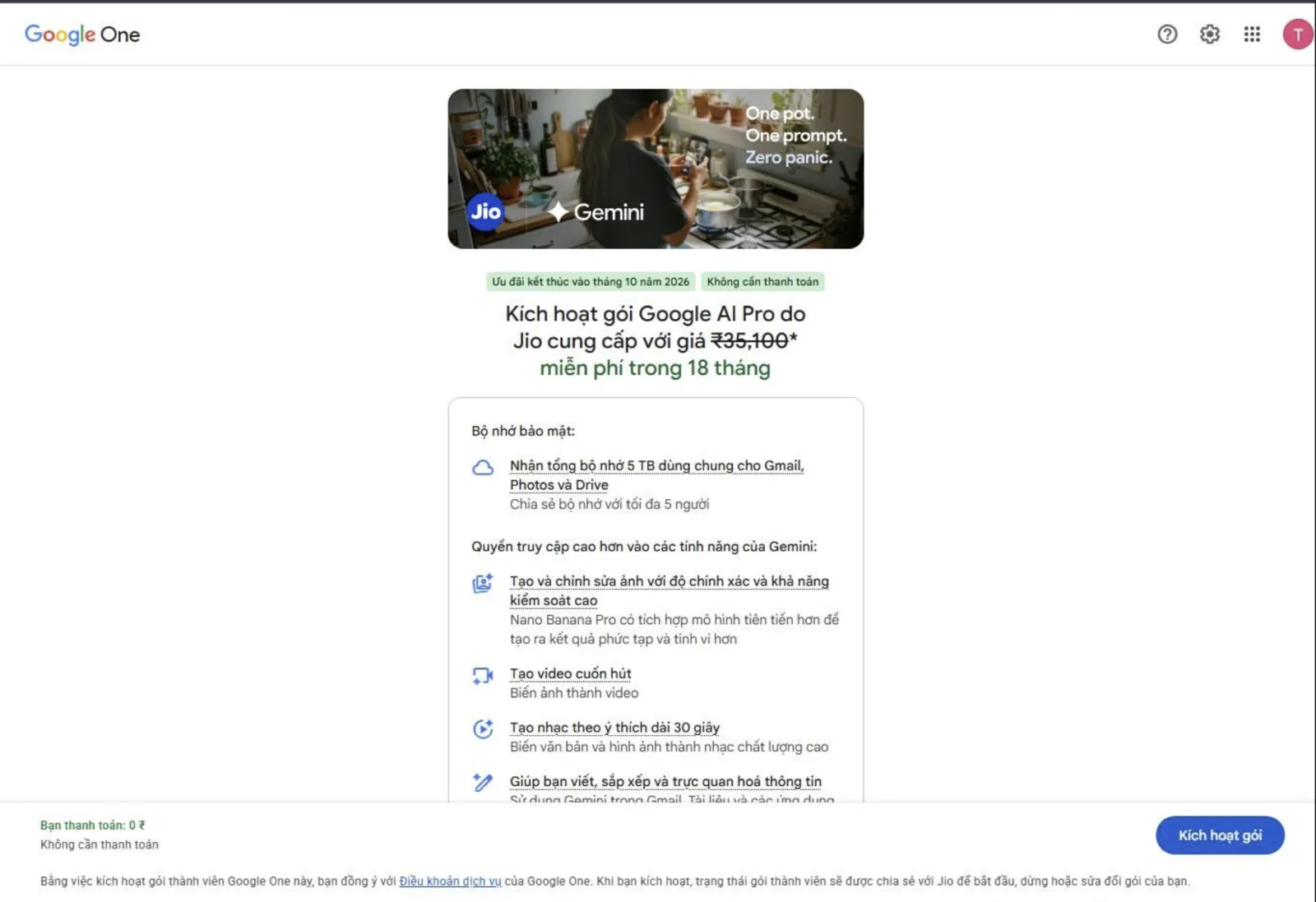
Note: Button names and screens can differ by language or app version. If the screen shows a charge that does not match the offer you expected, re-check the conditions before confirming.
4. Verify that Google AI Pro is active
Once you get the success message, open Google One with the exact Gmail you just linked and check the membership details. Then open Gemini with the same account to confirm access. Do not assume the plan is active just because you pressed the sign-up button in MyJio.
- Cross-check the Gmail address, the plan name and the membership status.
- Note the offer end date shown in the account so you can plan ahead.
- Read the pricing and renewal options that apply after the offer on the plan management screen.
5. Offer missing or activation failing?
If MyJio shows no banner, check the phone number, the active 5G plan and the age requirement one by one. If you finished every step but Google One shows no new plan, check whether you opened the wrong Gmail account and read the error message on screen.
Note: If the error persists, contact Jio support through MyJio or the official help page and quote the error text. Never send your Gmail password, an OTP code or a personal activation link to anyone.
Sources and updates
This guide is based on the MyJio sign-up flow and reflects the age requirement published on the Jio offer page. Google's original announcement explains the early rollout to the 18–25 group before the offer widened to eligible users across India.
A campaign with a high ROAS can still leave the business short of cash. A channel with a low CAC does not necessarily bring good customers. CAC, LTV and ROAS are only useful when calculated consistently and read next to margin, cash flow and payback period.
You do not need a complex financial model to start. What matters more is defining clearly which costs are included, which revenue has actually been recognised, and how differently each customer group behaves.
CAC: the cost of acquiring one customer
CAC is total sales and marketing spend in a period divided by the number of new customers it produced. Beyond the ad budget, include people, tools, content production, commissions and agency fees where they serve customer acquisition.
Note: Do not compare a channel CAC that only counts ad spend with a company-wide CAC that includes salaries and tools; the two numbers use different definitions.
LTV: customer value across the relationship
LTV should reflect contribution profit, not just revenue. For repeat-purchase models you can start with average order value multiplied by purchase frequency and retention period, then multiply by the margin. When data is thin, use conservative estimates and update them per customer group.
ROAS: revenue per unit of ad spend
ROAS is the revenue attributed to advertising divided by the advertising cost. It is easy to read but does not deduct cost of goods, payment fees, operations and refunds. The break-even ROAS for a business with a 30% gross margin is very far from one with an 80% margin.
Read the three together
- ROAS shows how efficiently the ad budget generates short-term revenue.
- CAC shows the total cost required to win a new customer.
- LTV shows whether you can recover CAC and profit afterwards.
- Payback period shows how long the business must fund its own growth.
- Cash flow shows whether the current pace of expansion is affordable.
A reporting process you can audit
-
01
Lock the definitions
Write down the data source, the time window and which cost types belong in each metric.
-
02
Break it down
View by channel, campaign, product and customer group rather than one average number.
-
03
Reconcile
Compare the revenue in the ad tool against orders, refunds and money actually received.
-
04
Decide
Raise the budget when profit and payback allow it, not just because the dashboard is green.
Retargeting is reaching people again after they interacted with your website, content or product without completing the action you wanted. They already know the brand, so the message should help them clear whatever step is blocking them, not repeat the original ad.
A clumsy campaign can follow a user for weeks with the same creative. The better approach is to segment by level of interest, cap the frequency and stop as soon as the goal is met.
Segment by meaningful behaviour
- Read an article but has not viewed a product.
- Viewed a specific product group or demo.
- Started checkout but did not finish.
- Existing customers due for renewal, an update or an add-on.
- Exclude existing buyers from prospecting campaigns.
The message must match the missing step
Someone still learning needs a guide or a comparison. Someone who has seen the price may need policies, a demo and an FAQ. Someone who abandoned checkout needs a reminder about the order or help with a technical error; do not assume they are just waiting for a discount code.
Control frequency and timing
- Cap the number of impressions within a given period.
- Use a shorter window for fast purchases and a longer one for complex decisions.
- Change the creative once a user has seen it many times.
- Stop the campaign when the product sells out, the offer expires or the customer converts.
A controlled rollout process
-
01
Define the events
Choose behaviours such as product view, demo view, checkout start and successful purchase.
-
02
Build exclusion lists
Exclude existing buyers, employees, very short visits and audiences that do not fit.
-
03
Write a message per segment
Each group gets a reason to return matched to its level of interest.
-
04
Measure the incremental result
Compare conversions and profit against a holdout group if your scale allows it.
Respect privacy and user choice
Clearly disclose your use of cookies or measurement technology, offer meaningful choices and never put sensitive data into an advertising audience. Platform policies and technical capabilities change; the operating team should check the official documentation before every campaign.
Facing a new product, buyers usually want to know whether someone like them has used it and how it went. Social proof lowers the sense of risk through other people's experience, behaviour or endorsement.
An anonymous five-star image, however, builds little trust. Good evidence needs context, relevance to the decision at hand and enough specificity for the reader to judge it themselves.
Forms of social proof that actually help
- Reviews with a name, role, situation and a specific outcome.
- Case studies describing the problem, the process, the limits and the data.
- Product demos or screenshots of real usage.
- Customer figures that have been verified and kept up to date.
- Certifications, partners or press coverage where you have the right to use the name and logo.
Place evidence next to the question it answers
A review about ease of use belongs near the guide or the demo. Evidence about support fits near the after-sales policy. A long case study can stand alone, but the landing page should quote the relevant part and link to the full version.
Ask for reviews in a way that is easy to answer
-
01
Pick the right moment
Ask just after the customer has completed a task or reached a noticeable result.
-
02
Suggest the questions
Ask about the situation before, what changed and which part they found most useful.
-
03
Get permission to publish
State clearly whether you will use their name, photo and company, or quote them anonymously.
-
04
Preserve the meaning
You may edit for length, but the customer must confirm it and the substance must not change.
Practices that cost a website credibility
- Generic reviews with avatars taken from stock photo libraries.
- Customer or purchase counters with no real data behind them.
- Showing only absolute praise and hiding every limitation.
- Using company logos without a relationship or permission.
- Manufacturing scarcity with fake viewer counts and countdown timers.
Measure the effect through behaviour, not review count
Track case study views, demo interactions, checkout starts and pre-purchase support questions. If customers keep asking the same thing, the evidence is probably in the wrong place or not specific enough, rather than simply too scarce.
A good landing page does not win through elegant phrasing. It wins when customers quickly understand whether the product is relevant to them, which benefit matters and what happens after they click the button.
Conversion copywriting starts with customer research. Without knowing how buyers describe the problem, a writer easily falls back on internal jargon or big promises with no evidence behind them.
Answer 5 questions before you write
- Who is the main reader of this page?
- What situation made them look for a solution now?
- What is the most important outcome they want?
- What are they worried about before buying?
- What evidence can you present honestly?
The top of the page must stand on its own
The headline should state the outcome or the core value. The supporting paragraph adds the audience, the method or the limits worth knowing. The button uses a specific verb such as see the demo, request a quote or start the trial. If a customer reads only this area, they must still understand what you sell.
Structure the body around the customer's questions
- The current problem and the cost of delaying.
- How the solution works, presented as easy-to-picture steps.
- Benefits paired with the feature or mechanism that proves them.
- Demos, reviews, use cases and credible data.
- What is in the package, the price, the policies and an FAQ.
How to write naturally and still persuade
- Use short sentences where people scan, longer ones where you explain.
- Be specific instead of overusing words like leading, revolutionary or fully optimised.
- Write as if explaining to a smart but busy customer.
- Acknowledge the conditions and the people it does not suit when necessary.
- Read it aloud to catch stiff sentences and repeated rhythm.
A checklist before publishing
- The core message is consistent from the ad through to the landing page.
- No promise is left without evidence or conditions.
- Each section leads logically to the next.
- The CTA is easy to see but not so frequent that it feels like pressure.
- The page reads well on a phone and the form only asks for what is needed.
A high-volume keyword is not automatically worth writing about. If the searcher only needs a short definition but you build a long sales page, neither the ranking nor the conversion will be good. Search intent tells you what the user is trying to accomplish with the query.
Researching keywords by intent is not about applying labels and moving on. You need to look at the search results, recognise which format is satisfying the need and decide what new value your website can add.
Four common intent groups
- Informational: wanting to understand a concept, a process or how to solve a problem.
- Navigational: looking for a specific brand, tool or page.
- Commercial: weighing options, prices, pros and cons or reviews.
- Transactional: ready to sign up, buy, download or get in touch.
Read the results page before you write
Observe which page types appear: guides, listicles, videos, category pages or product pages. Read the titles and featured snippets to understand the common question, but do not merge every competitor's structure into one endless article. Look for the missing part where your experience or data lets you answer better.
Cluster keywords around one need
- Variants with the same intent can be served on one page.
- Keywords with markedly different results usually need their own page.
- A pillar article explains the topic; satellite pieces answer the deeper questions.
- Each cluster should have a suitable next step in the customer journey.
Pick the right page type
-
01
Knowledge article
For questions, definitions, guides and problems early in the journey.
-
02
Comparison page
State the criteria, who each option suits and the trade-offs, rather than declaring one winner for everybody.
-
03
Product page
Focus on benefits, evidence, price, policies and the buying action.
-
04
Category page
Help users filter and choose between several products of the same type.
Prioritise by business potential
- How closely it relates to your product and expertise.
- Whether you can produce better or differentiated content.
- The difficulty and the resources needed to compete.
- The conversion value, not just the search volume.
- How well it can link to your other important pages.
Many persona documents look beautiful but do not help you write a single ad headline. The reason is that they contain guessed ages, jobs and hobbies, while missing the buying context, the job the customer is trying to get done and the worry that makes them hesitate.
A useful persona is built from real words and real behaviour. It does not reduce every individual to a stereotype; it helps the team recognise recurring needs so decisions stay consistent.
Collect data from several touchpoints
- Interview new buyers and customers who just left.
- Sales chats, support questions and refund reasons.
- Internal search keywords and the pages viewed before purchase.
- Reviews of your product and of competitors.
- Sales team notes on the objections they hear most.
Ask about the past, not predictions about the future
- What happened that made you start looking for a solution?
- How were you handling this task before?
- Where was the old solution inconvenient or expensive?
- Which options did you compare?
- What reassured you, or made you hesitate, before buying?
Group by need and buying context
Two people of the same age can buy for completely different reasons. Group by problem, urgency, experience level and decision criteria. If each group needs a different message, product or sales process, then you have a segment that actually means something.
What belongs on a one-page persona
- The job they are trying to get done.
- The situation that triggers the need.
- Their current solutions and habits.
- Barriers, perceived risks and selection criteria.
- Verbatim quotes showing how they describe the problem.
- The channels they use to research and ask for opinions.
Turn research into marketing decisions
-
01
Messaging
Use the customer's language to describe the problem and the outcome, without copying quotes mechanically.
-
02
Content
Create articles for the questions, barriers and buying situations that come up most often.
-
03
Product
Prioritise improvements that remove friction affecting many customers.
-
04
Measurement
Track conversions by segment and update the personas as the data changes.
Micro SaaS is a narrowly scoped software-as-a-service product, usually run by one person or a small team. It does not need to become a platform for everyone; it only needs to solve one recurring problem well enough for a group of customers willing to pay.
The hardest part is rarely writing the first feature. Harder still is finding the right problem, reaching users and keeping the service stable for months after they pay.
What makes a good micro SaaS idea?
- The problem happens often and currently costs time or money.
- The customer group can be identified and reached.
- The solution can start with one core function.
- Value is created continuously, which suits a subscription model.
- Legal, data and platform-dependency risks stay within your control.
Find the problem before thinking about features
Look at the manual work in an industry you understand: spreadsheets that must be updated daily, reports assembled from several sources, notifications that are easy to miss, or data that gets re-entered repeatedly. Interviews should focus on how the customer works today and what the inconvenience costs, not on whether they like your idea.
An MVP only needs to complete one job
-
01
Describe the outcome
Write one sentence about what the user can complete faster after using the product.
-
02
Build the main flow
Focus on input, processing and output; postpone customisation that few people need.
-
03
Onboard manually
Set it up alongside your first few customers to understand the friction, rather than automating too early.
-
04
Charge early
One small payment validates the value better than a list of people who say they are interested.
Practical pricing and operations
- Price on value and usage, not just server cost.
- Set clear plan limits so one customer cannot consume all the resources.
- Monitor errors, backups, security and uptime.
- Write documentation, a status page and an easy-to-find support channel.
- Include support time in the profit calculation for each plan.
Three signals that matter more than sign-ups
- Activation: how quickly a user completes the core job.
- Retention: whether they come back after a few weeks.
- Churn: why customers cancel, stop using it or do not renew.