
Want to use Google AI Pro without paying an AI subscription yet? A Jio promotion lets eligible users in India claim Google AI Pro free for 18 months. This article walks through every step, from checking your mobile plan to linking a Gmail account and finishing the activation.
One clarification: what is free here is the AI Pro subscription fee under the promotion. You still pay for and keep an eligible Jio mobile plan. This is a conditional offer in India, not an open programme for every Gmail account elsewhere.
1. Check the eligibility rules first
Before you open MyJio, compare your mobile subscription against the programme rules. Simply owning a Gmail account is not enough to receive the offer.
- Age: the offer page currently states it is for users aged 18 and over. The 18–25 group named in the original announcement was the early rollout phase.
- Subscription: an active Jio SIM on an unlimited 5G plan of ₹349 or more, prepaid or postpaid.
- Continuity: you must stay on an eligible Jio plan for the whole 18-month benefit period.
- Region: the programme targets eligible Jio users in India.
Note: These conditions were checked on 08/09/2026. Review the Jio page and the notices inside MyJio before you sign up, because the programme can change.
2. Get MyJio and your Google account ready
Have the phone with your Jio subscription on hand, along with the Google account that should receive the AI Pro plan. If several Gmail accounts are signed in on that phone, double-check which address is selected at the linking step so you do not activate the wrong account.
Note: Pick the personal Gmail you normally use for work or study, so the plan and your other Google apps stay under one account and are easier to manage.
3. How to claim Google AI Pro free through MyJio
-
01
Install MyJio and sign in
Download the MyJio app from the official app store on your phone. Open it and sign in with the Jio number that holds the eligible plan.
-
02
Find the Google Gemini or AI Pro banner
On the MyJio home screen, look for the Google Gemini offer banner. If it is missing, check which number is signed in, the status of your plan, and update the app.
-
03
Start claiming the offer
Tap the banner and choose Claim Offer or the equivalent sign-up button. Read the programme details and follow the eligibility checks shown in the app.
-
04
Link your Gmail account
Select or sign in to the Gmail account that should receive Google AI Pro. Re-read the email address before you continue; this is the account you will use to access the benefit after activation.
-
05
Confirm and finish activation
Follow any verification prompts. On Google's confirmation screen, read the plan name, the offer period and the amount payable, then press the activation button. Wait for the success message before you close the page.
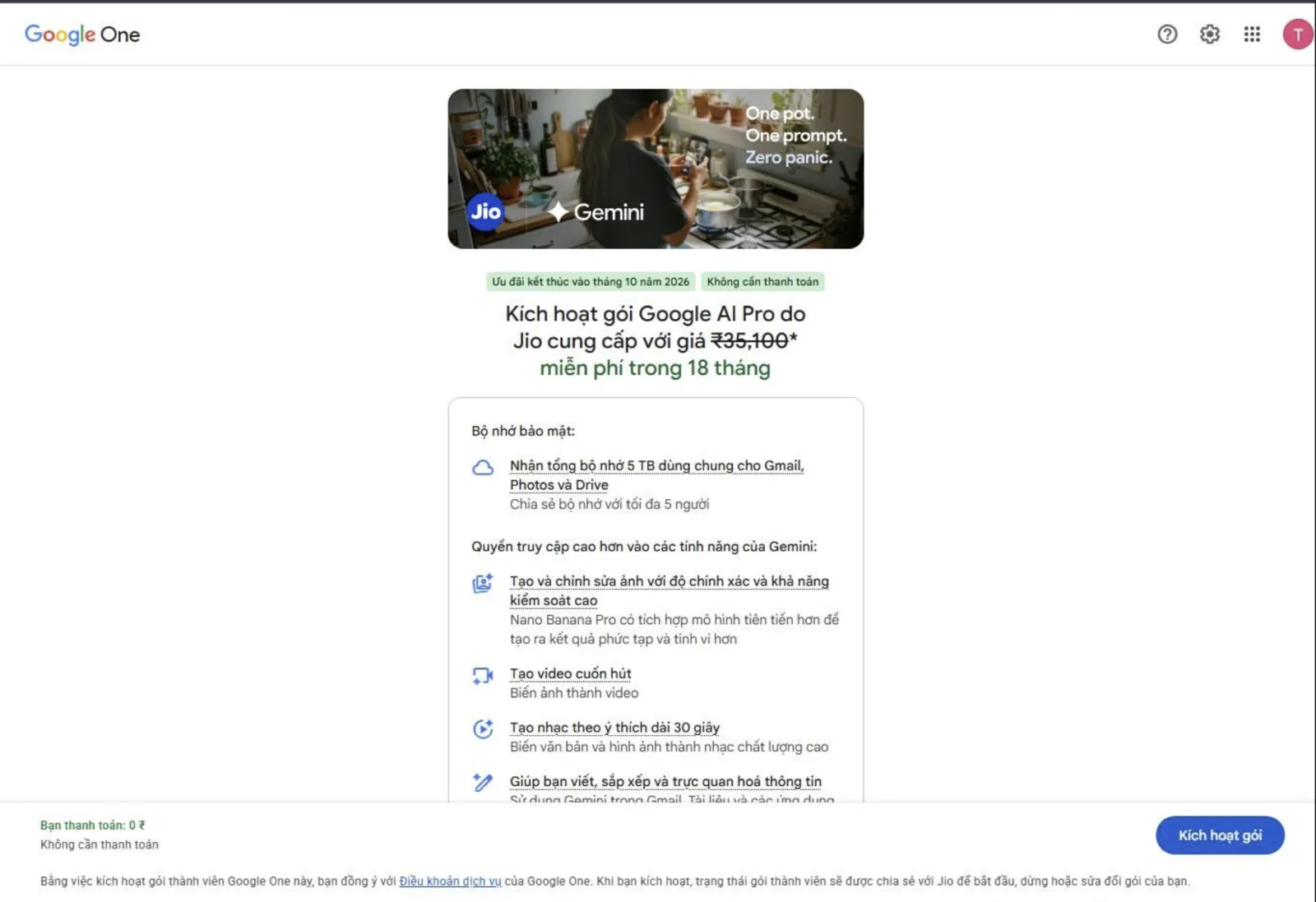
Note: Button names and screens can differ by language or app version. If the screen shows a charge that does not match the offer you expected, re-check the conditions before confirming.
4. Verify that Google AI Pro is active
Once you get the success message, open Google One with the exact Gmail you just linked and check the membership details. Then open Gemini with the same account to confirm access. Do not assume the plan is active just because you pressed the sign-up button in MyJio.
- Cross-check the Gmail address, the plan name and the membership status.
- Note the offer end date shown in the account so you can plan ahead.
- Read the pricing and renewal options that apply after the offer on the plan management screen.
5. Offer missing or activation failing?
If MyJio shows no banner, check the phone number, the active 5G plan and the age requirement one by one. If you finished every step but Google One shows no new plan, check whether you opened the wrong Gmail account and read the error message on screen.
Note: If the error persists, contact Jio support through MyJio or the official help page and quote the error text. Never send your Gmail password, an OTP code or a personal activation link to anyone.
Sources and updates
This guide is based on the MyJio sign-up flow and reflects the age requirement published on the Jio offer page. Google's original announcement explains the early rollout to the 18–25 group before the offer widened to eligible users across India.
A themed effect makes a website feel fresh during a holiday without touching the core source code. On a website running CMSNT source code, you can switch on the effect celebrating Reunification Day (30 April) directly from the admin area.
The guide below focuses on deploying it quickly, checking the display across devices, and removing it after the event so the website stays light and stable.
Before you install the effect
You need an account with access to Settings in the Admin Panel. Back up whatever is currently in the Script Header field before adding new code, so you can restore it immediately if needed.
- Sign in to the admin area of the correct website.
- Check that the website works normally with no layout errors.
- Save the current Script Header content to a separate file.
Steps to insert the 30 April effect
-
01
Open the Script Header area
In the Admin Panel, go to Settings and find the Script Header field. The menu name may differ slightly by source code version.
-
02
Paste the effect code
Place the two lines below after the existing content. Do not delete other tags or scripts unless you are certain what they do.
-
03
Save and refresh the website
Press Save, open the homepage in a private window and reload to confirm the CSS and JavaScript files have loaded.
<link rel="stylesheet" href="https://api.cmsnt.co/cdn/3041975/style.css">
<script src="https://api.cmsnt.co/cdn/3041975/script.js" defer></script>
Note: The defer attribute makes the JavaScript run after the HTML has been parsed, limiting the impact on how fast the main content appears.
Checks after installing
Test on both desktop and phone, because a full-screen effect can cover navigation buttons or important content on a small screen. If you use a cache system, you may need to clear the application, CDN or browser cache before the change appears.
- The page still scrolls, buttons still click and the menu still opens.
- No horizontal scrollbar appears and nothing covers the buy button.
- The browser console reports no errors loading style.css or script.js.
- Page load speed has not changed noticeably.
How to turn the effect off after the holiday
Go back to the Script Header field, delete exactly the two lines you added and save. Then clear the cache and check the homepage again. Removing it on time keeps the interface professional and avoids loading resources you no longer need.
Performance and safety notes
Any external JavaScript file can affect the page. Only use URLs from a source you trust, monitor the website while the effect is active, and always keep a copy of the previous configuration. If your website has a strict CSP, the api.cmsnt.co domain must be allowed in the relevant directive.
A multi-language website lets a business reach international customers without rebuilding the whole interface. GTranslate provides an automatic translation widget, which suits a fast rollout when you do not yet have a translation team.
This article explains how to create the widget, add the code to a CMSNT website, and what to optimise so machine translation does not degrade the user experience.
What is GTranslate?
GTranslate is a service that translates website content into several languages through an embedded widget. Visitors pick the language they want and the page content is converted automatically.
It saves time while you are testing a market. Machine translation may still be inaccurate for industry terms, product names or content that carries brand nuance.
- Advantages: fast to deploy, many supported languages, no need to edit each page.
- Limits: translation quality depends on the source text, and switching languages can introduce a delay.
- Best for: brochure sites, digital product pages or projects validating an international market.
How to create a GTranslate widget
-
01
Open the widget builder
Go to GTranslate's Website Translator Widget page and choose the platform that matches your website.
-
02
Set up the languages
Choose Vietnamese as the source language, enable the target languages and pick a display style that suits your navigation bar.
-
03
Copy the embed code
Preview the widget, then copy the entire snippet from the Widget Code area.
Install GTranslate on a CMSNT website
-
01
Sign in to the Admin Panel
Go to Settings and find the Script Footer field. Using Script Footer loads the widget after the main content.
-
02
Paste the widget code
Paste the whole snippet you copied, keep any other scripts already in the field, and press Save.
-
03
Check that it works
Open the website in a private window, choose a language and check the menu, buttons, forms and the checkout page.
Optimise your content for more accurate translation
- Write short sentences with a clear subject and avoid hard-to-read slang.
- Keep brand names, product codes and technical terms consistent.
- Manually review high-conversion pages such as pricing, checkout and policies.
- Never put important information only inside an image, since the widget cannot translate text in pictures.
Note: If multilingual SEO is a main growth channel, build separate URLs per language and edit the content by hand rather than relying on a browser-side translation widget.
Common problems
A missing widget is usually caused by an incompletely pasted snippet, a cache that has not refreshed, or a security policy blocking external files. If the layout breaks on mobile, try a more compact display style and check where the widget element sits in the configuration code.